Your first mod
A window, a switch, a button and an overlay, in five minutes.
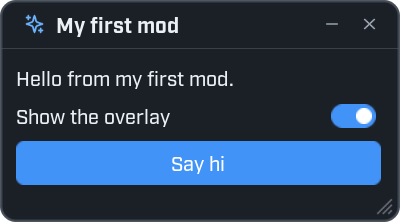
You will make this window. It has a line of text, a switch and a button.
Make a folder
Open the Wax\mods\ folder (see Installing). Make a new folder in it called MyFirstMod.
Make the file
In that folder, make a text file called init.lua. Paste this in and save it.
-- An overlay stays on the screen while you play.
local hud = ui.Overlay({ title = "My first mod", anchor = "top-left" })
hud:Field("Map", game.MapName or "none")

-- A window lives in the menu. F8 opens the menu.
local window = ui.Window({ title = "My first mod", icon = "sparkles", width = 300, height = 170 })

window:Label("Hello from my first mod.")

window:Toggle("Show the overlay", true, function(on)
    hud:SetVisible(on)
end)

window:Button("Say hi", function()
    ui.Notify("Hi from my first mod!", { kind = "good" })
end, { primary = true })
Start the game
Start ICARUS. A small panel appears in the top left corner of the screen. That is the overlay.
If the game was already running, press F8 and open the Mods page. Your mod is listed there, switched off. Flip its Enabled switch. A mod that shows up while the game is running always starts switched off.
Press F8
The menu opens and your window is there.
- Flip the switch. The overlay hides and comes back.
- Click Say hi. A green message slides in at the corner of the screen.
Press F8 or Escape to close the menu.
Change it while the game runs
Leave the game running. In init.lua, change "Say hi" to "Wave" and save the file.
Look at the game. The button already says Wave. Saving the file reloaded your mod.
What each part does
| Line | What it does |
|---|---|
ui.Overlay({ ... }) | Makes a panel that stays on screen while you play. It never takes the mouse. |
hud:Field("Map", ...) | Adds a name with a value beside it. |
game.MapName | The name of the map you are on. |
ui.Window({ ... }) | Makes a window in the menu. |
window:Label(...) | Adds a line of text. |
window:Toggle(...) | Adds a switch. The function runs each time you flip it. on is true or false. |
window:Button(...) | Adds a button. The function runs each time you click it. |
ui.Notify(...) | Shows a short message in a corner of the screen. |
Give your mod a name
This step is optional. Add a second file next to init.lua, called mod.lua:
return {
    name = "My first mod",
    version = "1.0.0",
}
The Mods page now shows that name and version. Without this file it shows the folder name.
When something goes wrong
Make a mistake on purpose. Delete a closing bracket in init.lua and save.
- A red message tells you what is wrong, and on which line.
- The Log page of the Wax panel shows the same error.
- The Mods page marks the mod as failed.
Fix the mistake and save again. The mod loads, and the error is gone.